










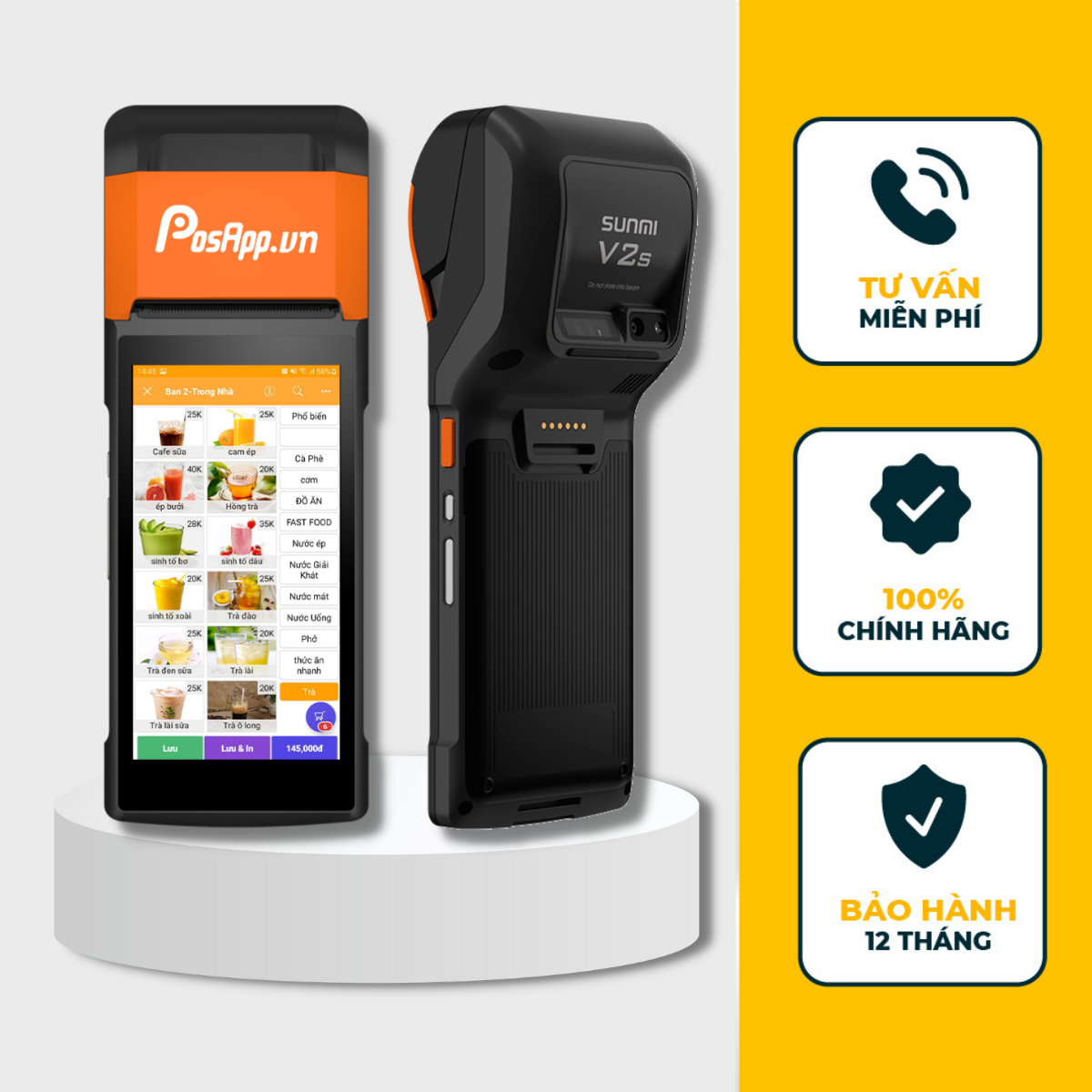
POS hardware for businesses in Vietnam

Cash Registers & POS Hardware in Vietnam

PosApp supplies touchscreen cash registers and POS hardware for restaurants, cafés, retail stores and service businesses in Vietnam. Choose countertop terminals, handheld POS devices and compatible receipt printers, barcode scanners and cash drawers. Used with PosApp software, the right setup helps your team take orders, manage checkout and print receipts. English consultation is available to help you select your hardware.

  • Keep checkout moving. Enter orders on a touchscreen and scan products with a compatible barcode scanner.
  • Make better use of counter space. Choose a compact terminal or a model with a built-in receipt printer.
  • Serve customers where they are. Use a handheld POS with a built-in printer to take orders and print receipts at the table.
  • Give customers a clearer checkout. Choose a customer-facing screen to display order details and QR payment information with supported software.

From order to receipt, with PosApp software

  1. Take the orderTap items on the touchscreen or scan products with a compatible barcode scanner.

  2. Check the bill & take paymentReview the total in PosApp. Card payments require a supported payment terminal and service activation.

  3. Print the receiptUse a built-in or connected receipt printer to hand over a clear record of the sale.

POSAPP IN USE

See PosApp at the Point of Sale

Trusted by businesses across Vietnam

  • 135,000+locations use PosApp solutions
  • 500+chains and multi-store brands
  • 12 monthshardware warranty
  • 65+sales management features

Some of the businesses using PosApp

  • Hồng Trà Ngô Gia
  • Trung Nguyên Legend
  • Nam Long
  • PappaRoti
  • Ding Tea
  • QB House
  • Huế Plaza
  • Furama Resort
  • VinFast Factory
  • Noi Bai International Airport
  • Da Nang International Airport
  • SSIS – Saigon South International School

Founded in 2019 · Offices in Ho Chi Minh City and Hanoi · English-speaking sales support · See customer stories

POS hardware explained

What Is a Touchscreen Cash Register?

A touchscreen cash register, also called a POS machine or POS terminal, is a sales terminal that runs point-of-sale (POS) software to record purchases, calculate totals and print receipts through a built-in or connected receipt printer. It forms the checkout station for a shop, café or restaurant.

A POS hardware setup can combine a countertop POS terminal or handheld POS device with a compatible barcode scanner, cash drawer, kitchen printer or customer-facing display. PosApp offers single-screen and dual-screen cash registers, an all-in-one model with a built-in receipt printer, handheld POS machines and a self-service kiosk for businesses in Vietnam. PAM3, PAD2A, SW2NFC-PRO and all three handheld models run on Android.

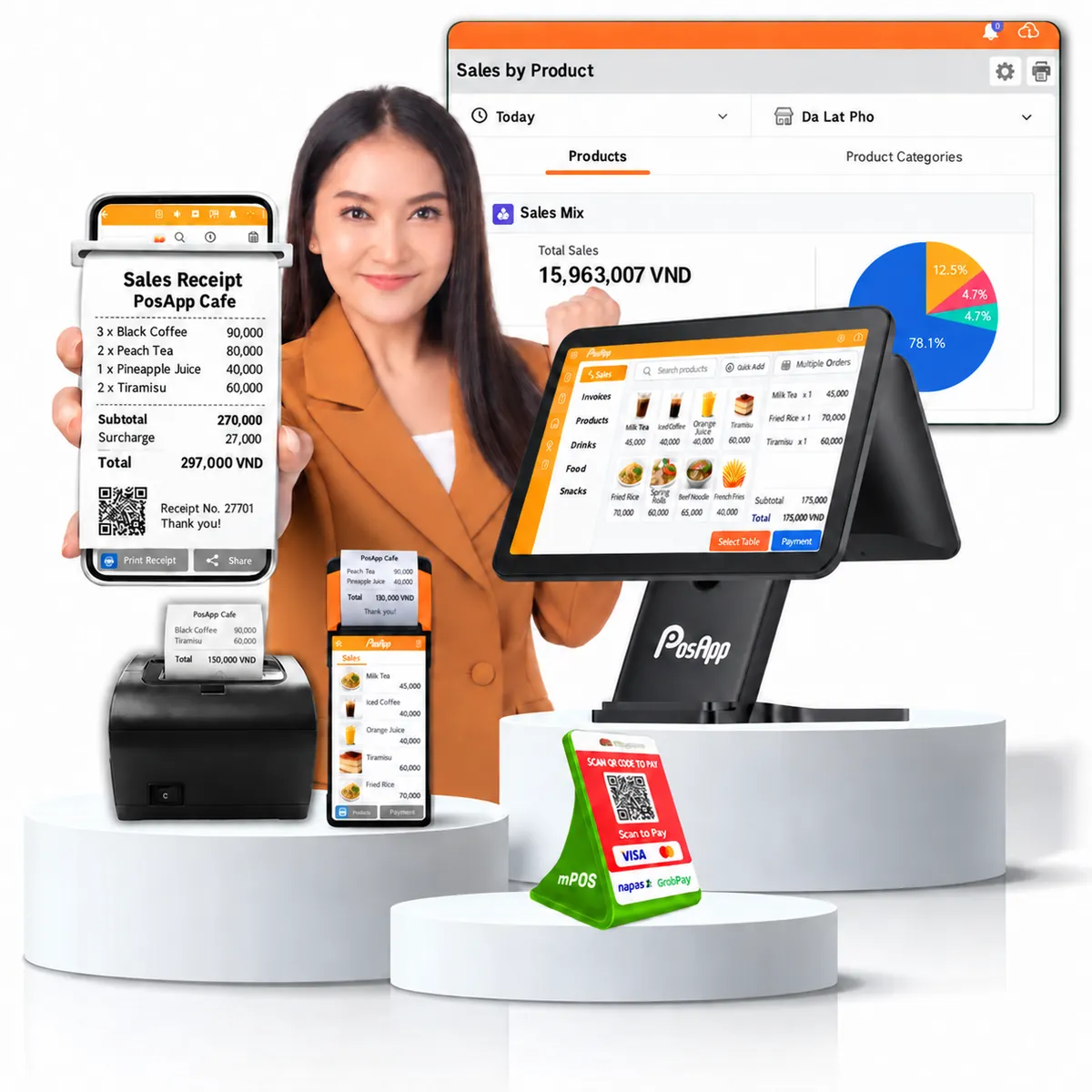
PosApp touchscreen cash register, receipt printer and handheld POS with English sales screens and a QR payment device
Illustrative POS setup; screen content shown in English.Select image to enlarge ↗

Compare your options

Compare Cash Register Prices & POS Hardware

Compare countertop cash registers, handheld POS devices and self-service hardware by setup, receipt printing and price. Find a suitable option for your business in Vietnam, then ask our English-speaking team for a quotation.

9 hardware optionsPrices in VND · VAT included · Checked
PosApp hardware comparison for businesses in Vietnam
Model / setupBest forReceipt printerHardware price
01Countertop POS5
PosApp PAM3 POS hardwarePAM3Compact countertop
Small counters ExternalSold separately 5,590,000VND
PosApp PA680 Single Screen POS hardwarePA680 Single Screen15.6-inch countertop
Larger cashier workspace ExternalSold separately 8,400,000VND
PosApp PA680 Dual Screen POS hardwarePA680 Dual ScreenCustomer-facing display
Customer-facing checkout ExternalSold separately 10,600,000VND
PosApp PAD2A POS hardwarePAD2ADual screen + receipt printer
Countertop with integrated printing Built-in80 mm thermal 11,590,000VND
PosApp SW2NFC-PRO POS hardwareSW2NFC-PRODual screen + membership NFC
Membership-based businesses ExternalSold separately 13,860,000VND
02Handheld POS2
PosApp PAC2s POS hardwarePAC2sHandheld ordering + printing
Mobile ordering on a budget Built-in58 mm thermal 4,890,000VND
PosApp PAC3 POS hardwarePAC3Handheld ordering + printing
Frequent mobile ordering Built-in58 mm thermal 6,990,000VND
03Payment terminal1
PosApp SmartPOS Pro POS hardwareSmartPOS ProCard and QR payment device
Card and QR payments Built-inActivation required On request
04Self-service kiosk1
PosApp self-service ordering kioskPosApp KioskSelf-service touchscreen
Customer self-ordering By setupConfirm configuration On request

Prices are in VND and include VAT. PosApp software is subscribed to separately. Your quotation will confirm accessories, delivery and setup charges. Card payment services require separate activation; membership NFC is not a bank-card reader.

Not sure which device fits your business?

Tell us your business type, counter space and printing needs. Our English-speaking team can help you choose a suitable hardware setup.

Find your POS hardware

Explore 9 PosApp Cash Registers & POS Machines

Find the right hardware for your business in Vietnam, from a compact touchscreen cash register to a dual-screen POS terminal, a handheld device or a self-service kiosk. Compare what each model offers, where it fits and how much the hardware costs.

Hardware prices in VND, including VAT. PosApp software is subscribed to separately. Accessories, delivery and installation are quoted for your location and selected setup.

GROUP 01

Countertop cash registers

Choose a touchscreen cash register for a fixed checkout station. Compare screen size, customer displays and built-in receipt printing to match your counter space and daily workflow.

Explore 5 countertop models

10.1-inch touchscreen

Compact countertop POS

PAM3 — a compact cash register for small businesses

Make room for a dedicated checkout station, even on a small counter. PAM3 combines a 10.1-inch touchscreen with a compact stand for everyday sales in a café, shop or reception area.

  • 10.1-inch touchscreen for selecting items and reviewing orders.
  • Compact countertop design for limited checkout space.
  • Add a compatible receipt printer, barcode scanner or cash drawer as needed.

Ideal for: Small cafés, bakeries, boutiques and service counters.

Selection tip: Choose this model when counter space and initial hardware cost are your main priorities.

Hardware specifications for PAM3
Display
10.1-inch touchscreen · 1280 × 800
Processor & OS
RK3566 quad-core · 1.8 GHz · Android
Memory
2 GB RAM · 16 GB storage
Wireless
Wi-Fi · Bluetooth 4.2 BLE
Hardware price5,590,000 VNDVAT included · hardware only
15.6-inch Full HD display

Large-screen countertop POS

PA680 Single Screen — more room to work at checkout

A 15.6-inch Full HD display gives staff more space to view products, menus and open orders. This countertop POS terminal suits businesses that need a larger screen and connections for separate checkout equipment.

  • 15.6-inch IPS Full HD touchscreen for the cashier.
  • 4 GB RAM and 64 GB storage for your POS setup.
  • Connect compatible receipt printers, barcode scanners and other peripherals.

Ideal for: Restaurants, coffee shops, minimarts and retail stores.

Selection tip: Choose this model when your cashier needs a large display and you do not need a separate customer screen.

Hardware specifications for PA680 Single Screen
Display
15.6-inch IPS · Full HD
Processor
RK3568 quad-core · 2.0 GHz
Memory
4 GB RAM · 64 GB eMMC
Connections
USB-A · Micro USB · Ethernet · audio
Hardware price8,400,000 VNDVAT included · hardware only

Customer-facing display

Dual-screen cash register

PA680 Dual Screen — let customers check their order

Keep the cashier and customer looking at the same sale. Staff work on the 15.6-inch main touchscreen while the customer-facing display shows order details, totals or payment QR codes through the configured POS software.

  • Separate displays for the cashier and customer.
  • Show items and totals so customers can review the order.
  • Display payment QR codes or promotional content through the supported software setup.

Ideal for: Cafés, restaurants, minimarts and busy retail counters.

Selection tip: Choose this model when customers need to review their order on a dedicated screen before paying.

Hardware specifications for PA680 Dual Screen
Cashier display
15.6-inch IPS · Full HD
Customer display
Dedicated rear display; confirm size with your quote
Processor & memory
RK3568 · 4 GB RAM · 64 GB storage
Connections
USB · Ethernet · Wi-Fi · Bluetooth
Hardware price10,600,000 VNDVAT included · hardware only
PosApp PAD2A dual-screen cash register with built-in receipt printer

Built-in 80 mm printer

POS with built-in printer

PAD2A — an all-in-one cash register with an 80 mm receipt printer

Combine a touchscreen cash register, customer display and receipt printer in one countertop unit. PAD2A helps keep the checkout area tidy by printing receipts without a separate desktop printer.

  • Built-in 80 mm thermal receipt printer with an automatic paper cutter.
  • 14-inch cashier display and 10.1-inch customer display.
  • Fewer separate devices and printer cables on the counter.

Ideal for: Coffee shops, bakeries, restaurants, retail stores and service desks.

Selection tip: Choose this model when you want dual screens and receipt printing in one device.

Hardware specifications for PAD2A
Displays
14-inch Full HD main screen · 10.1-inch customer screen
Processor & OS
RK3566 quad-core · 1.8 GHz · Android
Memory
2 GB RAM · 32 GB storage
Receipt printer
Built-in · 80 mm thermal paper · automatic cutter
Hardware price11,590,000 VNDVAT included · hardware only
PosApp SW2NFC-PRO dual-screen POS with NFC membership card reader

NFC membership configuration

POS with membership card reader

SW2NFC-PRO — dual screens with NFC membership support

Bring member identification into your checkout setup. The NFC-equipped SW2NFC-PRO combines two displays with a reader for compatible membership or prepaid cards, depending on your software and card configuration.

  • 15.6-inch Full HD multi-touch main screen, plus a second screen for customers.
  • Available with or without NFC card reading; the price shown is for the NFC version.
  • Suitable for membership, prepaid balance or internal card workflows with compatible software.

Ideal for: Gyms, spas, clubs, canteens and entertainment venues.

Selection tip: Choose the NFC configuration when your business uses compatible membership or prepaid cards.

Hardware specifications for SW2NFC-PRO
Displays
15.6-inch Full HD touchscreen · second screen for customers
Processor, memory & OS
Quad-core 2.0 GHz · 2 GB RAM · 16 GB storage · Android 11
Card reader
NFC version shown · version without NFC available
Connections
Wi-Fi · Bluetooth · 3 × USB-A · Ethernet (RJ45) · RJ11 · RJ12 · TF card
Hardware price13,860,000 VNDNFC configuration · VAT included
GROUP 02

Handheld POS devices

Equip staff who work away from the counter. PAC2s and PAC3 focus on ordering and receipt printing; SmartPOS Pro provides supported card and QR payment services.

Explore 3 handheld devices

Portable ordering & receipts

Handheld ordering POS

PAC2s — a handheld POS with a receipt printer

Take orders and print receipts where you serve customers. PAC2s combines a 5.5-inch touchscreen, 4G connectivity and a built-in 58 mm thermal printer in a portable POS device.

  • Record orders at the table or away from a fixed checkout counter.
  • Print 58 mm receipts directly from the device.
  • Use Wi-Fi or a supported 4G connection for mobile workflows.

Ideal for: Small restaurants, cafés, food stalls and mobile sales.

Selection tip: Choose this model when you need portable ordering and receipt printing at a lower hardware cost.

Hardware specifications for PAC2s
Display
5.5-inch touchscreen
Memory & OS
2 GB RAM · 16 GB storage · Android
Receipt printer
Built-in · 58 mm thermal paper
Connections
4G SIM · Wi-Fi · Bluetooth
Hardware price4,890,000 VNDVAT included · hardware only

PosApp PAC3 handheld POS with touchscreen and receipt printer

6.75-inch handheld display

Handheld POS for busy shifts

PAC3 — a larger handheld screen for everyday order handling

Give staff more screen space in a portable device. PAC3 pairs a 6.75-inch display with a Qualcomm six-core processor, 3 GB RAM and a built-in receipt printer for ordering and supported delivery-app workflows.

  • 6.75-inch touchscreen for viewing items and order lists.
  • 3 GB RAM and 32 GB storage; check the requirements of your chosen apps.
  • Built-in 58 mm printer, removable battery and 4G connectivity.

Ideal for: Restaurants, cafés and stores handling frequent mobile or delivery orders.

Selection tip: Choose this model when staff need a larger handheld display and more memory than PAC2s.

Hardware specifications for PAC3
Display
6.75-inch touchscreen
Processor, memory & OS
Qualcomm six-core · 3 GB RAM · 32 GB storage · Android
Receipt printer
Built-in · 58 mm thermal paper
Mobility
Removable battery · 4G · dual-band Wi-Fi
Hardware price6,990,000 VNDVAT included · hardware only

Card & QR payments

Handheld payment device

SmartPOS Pro — card and QR payments in a handheld device

Add a dedicated payment device to your business setup. SmartPOS Pro brings supported card payments, QR payments and receipt printing together, subject to the payment service and merchant account activated for your business.

  • Accept supported magnetic-stripe, chip and contactless card payments.
  • Handle supported QR payments and print payment receipts.
  • Use the device within the applications supported by the payment provider.

Ideal for: Restaurants, cafés, retail stores, spas and service businesses.

Selection tip: Ask about device availability, merchant activation and supported payment methods when requesting a quote.

Hardware specifications for SmartPOS Pro
Display
6.5-inch IPS touchscreen
Memory & OS
3 GB RAM · 32 GB storage · Android
Receipt printer
Built-in · 58 mm thermal paper
Payment methods
Supported card and QR services; activation required
Price on requestRequest a quoteConfirm configuration & availability
GROUP 03

Self-service ordering kiosks

Add a dedicated touchscreen where customers can browse your menu and place orders. Select the screen, printer and payment setup around your floor space and service workflow.

Explore the self-service kiosk

Customer self-ordering

Self-service ordering kiosk

PosApp Kiosk — a touchscreen ordering point for customers

Create an additional ordering point where customers can browse the menu and place an order themselves. The kiosk connects to your POS and kitchen workflow through the configured software, with payment options selected for your installation.

  • Large touchscreen options for customer self-ordering.
  • Built-in 80 mm receipt printer with automatic paper cutting.
  • Configure order routing and a compatible payment device for your business.

Ideal for: Quick-service restaurants, cafés, canteens, food courts and entertainment venues.

Selection tip: Choose a kiosk when you want to add customer self-ordering alongside your staffed checkout counter.

Hardware specifications for PosApp Self-Service Kiosk
Display options
21.5 to 32 inches; confirm available configuration
Controller
RK3566 · 4 GB RAM · 16 GB storage
Receipt printer
80 mm thermal paper · automatic cutter
Housing
CNC-cut steel · powder-coated finish
Price on requestRequest a quoteConfirm configuration & availability

Need help choosing your POS hardware?

Tell us your business type, city in Vietnam, counter space and receipt-printing needs. Ask PosApp for a hardware configuration and an itemized quote.

Discuss my setup

PosApp product video

Original product video in Vietnamese. Open on YouTube

Choose POS Hardware for Your Business in Vietnam

Whether you run a café, a shop, a salon or a sports venue, choose your cash register around the way you serve customers. Explore hardware options for your counter space, receipt printing and day-to-day service.

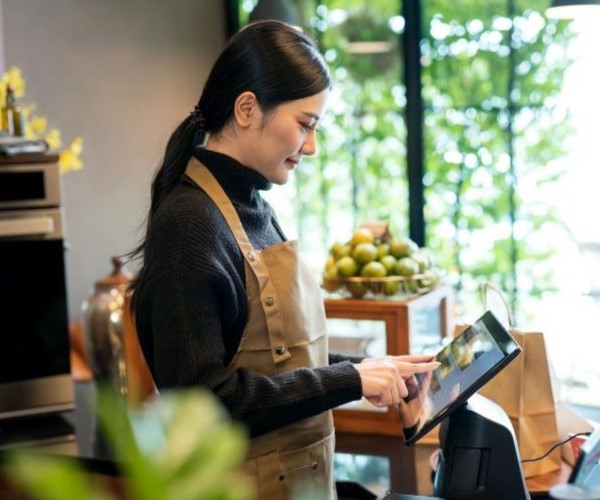
Café staff member using a touchscreen POS at the counter
For restaurants, cafés, bars, bakeries and takeaway businesses.

POS Hardware for Restaurants & Cafés

Serve customers at the counter, at tables or on the go. Use a touchscreen cash register at your main checkout, with handheld POS devices and kitchen printing where your team needs them. Pair it with PosApp restaurant POS software for table orders, kitchen printing and e-invoicing.

  • Touchscreen order entry at the counter
  • Handheld POS for table service
  • Receipt printing at checkout
  • Kitchen printers or displays with PosApp software

Hardware Options to Consider

PA680 Dual ScreenA main checkout with a separate display for customers to review supported order information.
PAD2AA compact counter setup with a built-in receipt printer.
PAC3Handheld order entry and receipt printing away from the main counter.
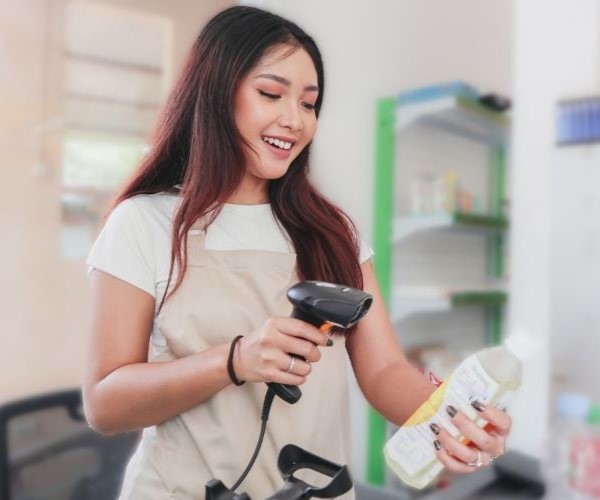
Retail staff member scanning a product barcode
For boutiques, specialty shops, grocery stores and minimarts.

Cash Registers for Retail Stores

Build a checkout that fits your products and available space. Pair a touchscreen cash register with a compatible barcode scanner, receipt printer and cash drawer for everyday retail sales.

  • Barcode scanning for product entry
  • Printed receipts for customer purchases
  • A cash drawer for cash payments
  • An optional customer-facing display

Hardware Options to Consider

PA680 Dual ScreenA retail counter where customers can review their purchases on a separate display.
PAD2AIntegrated receipt printing to reduce separate equipment at checkout.
PAM3A compact touchscreen option for smaller shop counters.
Salon setting with a person using a tablet
For day spas, hair salons, barbershops, nail studios and beauty businesses.

POS Hardware for Spas & Salons

Keep reception organised with a touchscreen terminal for service checkout and product sales. Choose a compact machine or built-in receipt printing to leave more room on your reception desk.

  • Touchscreen checkout at reception
  • Service and product sales through PosApp
  • Built-in or connected receipt printing
  • Compact hardware for limited counter space

Hardware Options to Consider

PAM3A small reception desk that needs a compact touchscreen terminal.
PA680 Single ScreenA larger touchscreen workspace for reception staff.
PAD2AA reception setup with a built-in printer and fewer separate devices.
Players and billiards tables at A Dong billiards club in Vietnam
For pool halls, billiards clubs, pickleball or badminton courts, and indoor play areas.

POS Hardware for Sports & Leisure Venues

Run a reception or checkout desk for a pool hall, sports court rental or indoor play area. Pair your POS hardware with software configured for hourly or session-based charges, plus food, drinks or equipment rental where needed.

  • Countertop POS for reception and checkout
  • Receipts for sessions and extra purchases
  • A cash drawer for cash payments
  • Optional handheld POS for food and drink orders

Hardware Options to Consider

PA680 Dual ScreenA main checkout where customers can review supported bill information.
PAD2AA reception counter that needs a built-in receipt printer.
PAC3A handheld device for staff taking food and drink orders around the venue.

Tell us how you charge for time, sessions and rentals so we can confirm the right software configuration.

Customer workflows · Cash registers in use

Cash Registers in Action at Businesses in Vietnam

See which PosApp cash registers real businesses in Vietnam use every day, and how orders, payments and data move from the counter to management.

Bubble tea franchise · 800+ stores · PA680 Dual Screen + PAC3

Hồng Trà Ngô Gia

PAC3 handhelds at the door, a PA680 Dual Screen cash register at the counter

At busy take-away times, staff carry PAC3 handheld POS devices outside to take orders from customers stopping by on motorbikes. Each order goes straight to the PA680 Dual Screen cash register at the counter, which prints the receipt and cup labels while its second screen faces the customer.

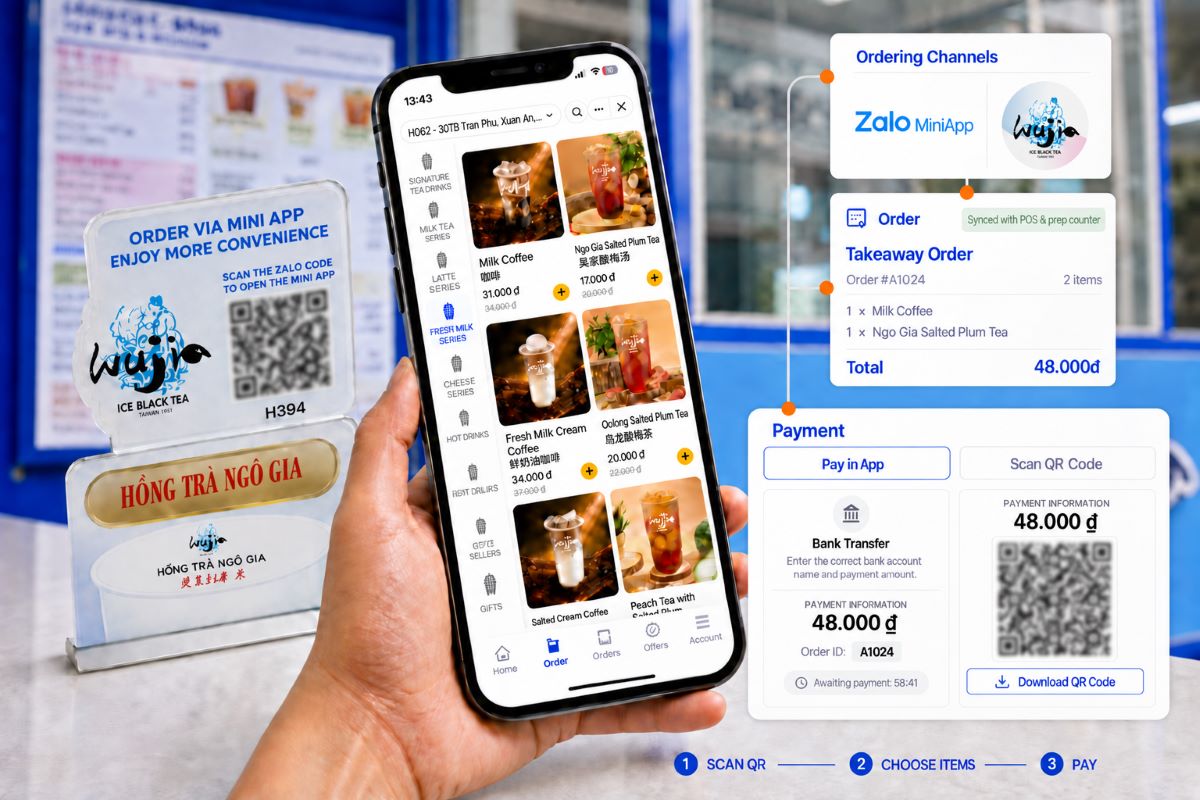
Regular customers can also scan a QR code and order in the Zalo Mini App. Every sale deducts recipe ingredients, so the central warehouse can plan tea preparation and deliveries for each franchise store.

The same hardware in every store

A PA680 Dual Screen cash register at the counter, plus PAC3 handheld POS devices with built-in printers for orders at the door.

PA680 Dual Screen + PAC3
Customers ordering at a Hồng Trà Ngô Gia bubble tea store Watch on-site video
On-site video in Vietnamese: handheld order taking and the counter cash registerYouTube ↗
Customers scan a QR code, choose drinks and pay in the Hồng Trà Ngô Gia Zalo Mini App
Mini App orders reach the same counter cash register and prep stationView larger ↗

01 · PAC3 handheld at the door

Taking orders before customers reach the counter

  1. Greet customers outsideStaff walk to customers who stop by on motorbikes during rush hour.
  2. Record the order on PAC3Drinks, cup size, sugar and ice levels go into the handheld in a few taps.
  3. Send it to the counterThe order appears on the PA680 Dual Screen cash register, with no re-entry.

02 · PA680 Dual Screen at the counter

Checkout and drink preparation at the counter

  1. Print receipt and cup labelsLabels with each drink's recipe print at once for the drink station.
  2. Take paymentThe second screen can show the order and a dynamic VietQR code; card payments are also accepted.
  3. Deduct stock and reportIngredients are deducted by recipe, and sales reach the owner's phone.

From every store's cash register to the central warehouse

PosApp collects sales and ingredient stock from each franchise store in real time, so the central team can plan production and deliveries.

  1. PA680 Dual Screen + PAC3 in each store

    Sales, recipe-based stock deductions and supply requests

    Zalo Mini App

    Customer orders, QR payments and member points by store

  2. Cloud POS platform

    POSAPP

    Chain-wide sales and stock data

    • Revenue and volume in real time
    • Ingredients deducted by recipe
    • Points kept separate per franchise store
  3. Central warehouse

    SUPPLY PLANNING

    Production and deliveries based on real sales

    • See what each store needs
    • Plan daily tea preparation
    • Schedule ingredient deliveries

Stores create supply requests on the cash register, and loyalty costs stay with the franchise store that issued the points.

How points, rewards and cashier shifts are tracked

Points by franchise store. Customers earn points at the store where they buy, and rewards are charged to that store, so each franchise owner sees their own loyalty costs.

Mini App rewards. Customers order ahead, check their points and redeem offers such as a free drink after eight cups; rewards sync at once with the counter cash register.

Cashier shift control. Opening the cash drawer, payments, cancelled items, receipts and e-invoices on the PA680 are logged for each shift.

Six more businesses and the cash registers they use

From showroom ERP integration and meal allowances to airport kiosks, resident vouchers and a six-floor shopping center.

Swipe to see more stories →
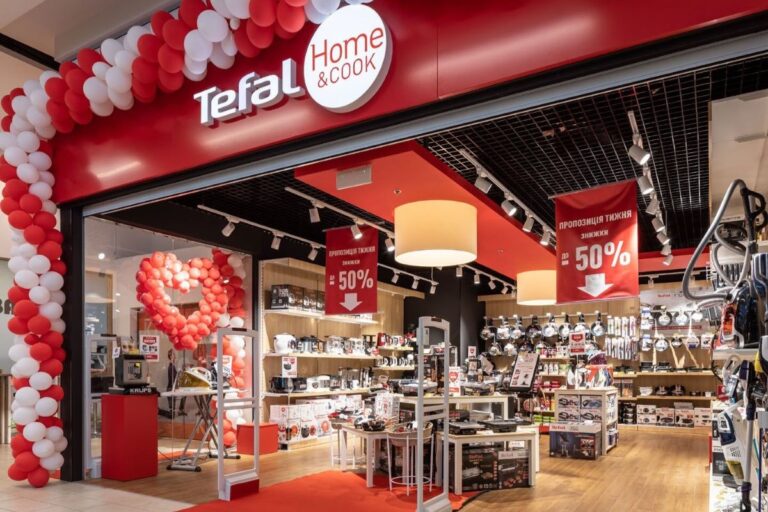
Inside a Tefal showroom in Vietnam

Retail showrooms · website · ERP integration

Tefal Vietnam

Showroom sales and website orders in one system, synced with Tefal's ERP

In Tefal showrooms, staff use a PA680 Dual Screen cash register to scan products, check stock, create orders and print receipts. Website orders arrive in the same PosApp system, and sales and stock movements sync with Tefal's ERP.

Tefal's ERP receives sales and stock data from every showroom counter and from the online store.

  • PA680 Dual Screen
  • Barcode scanning
  • Website orders
  • ERP integration

Showroom and online sales into Tefal's ERP

  1. PA680 Dual Screen in showrooms

    Scan products, create orders and take payment

    Tefal website

    Online orders from the brand's store

  2. Central POS platform

    POSAPP

    Showroom and online sales together

    • Receipts from every counter
    • Website orders
    • Stock by showroom
  3. Enterprise management

    TEFAL ERP

    Accounting and supply chain

    • Revenue for the whole chain
    • Automatic stock movements
    • Performance by showroom

HardwarePA680 Dual Screen at each showroom counter, with a barcode scanner

Ask about a setup like this
Inside a Cơm Tấm Phúc Lộc Thọ restaurant

Broken rice restaurant chain · rolling out across 10+ stores in Ho Chi Minh City

Cơm Tấm Phúc Lộc Thọ

Dine-in sales, remote orders and employee meal allowances on one counter POS

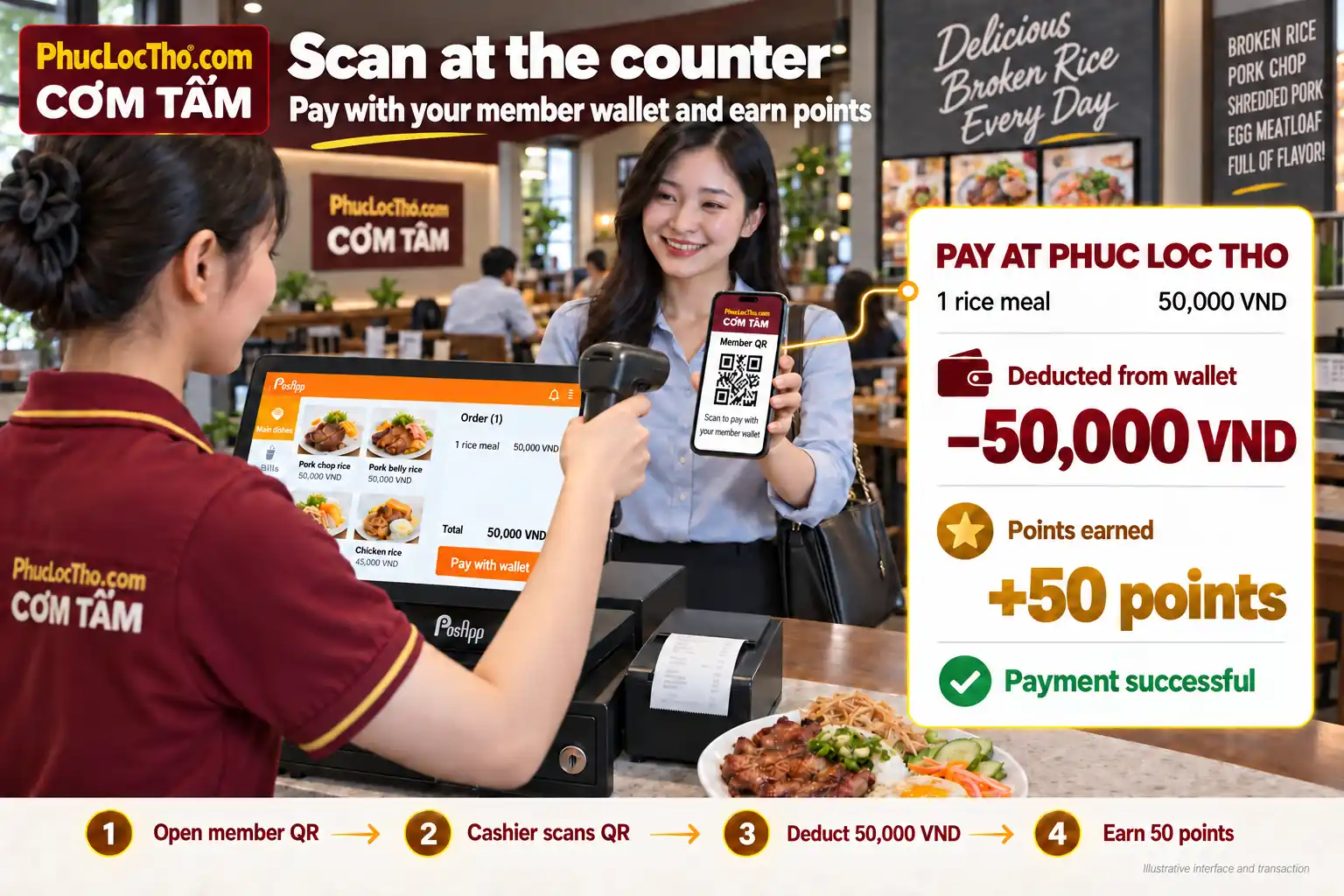
Phúc Lộc Thọ serves dine-in customers, delivery orders and employees who receive meal benefits from participating companies. On a PA680 Dual Screen cash register, cashiers handle counter sales, receive remote orders and scan employees' QR codes to deduct their meal allowance.

QR deductions replace paper meal records: one scan deducts the right amount and adds loyalty points.

  • PA680 Dual Screen
  • Meal allowance by QR
  • Remote orders
  • Stock deduction
Illustration of a Phúc Lộc Thọ cashier scanning a member QR code at the counter POS
Illustrative interface and transactionView larger ↗

Paying from a meal allowance at the counter

  1. Show the member QR codeThe employee opens a member QR code on their phone.
  2. Scan it at the counterThe cashier scans the code at the PA680 Dual Screen.
  3. Deduct the meal allowanceThe meal price is deducted from the company-funded wallet.
  4. Add points and update stockLoyalty points are added and the sale is recorded for stock and shift close.

HardwarePA680 Dual Screen at the counter

Ask about a setup like this
Haircut stations at a QB House barbershop in Vietnam

Japanese-style barbershop chain · Zalo Mini App loyalty

QB House Vietnam

Fast checkout after each haircut, with points added for the next visit

QB House Vietnam focuses on fast, consistent service from reception to checkout. Staff record each haircut on a PA680 Dual Screen cash register and print the receipt, and loyalty points go straight to the customer's Zalo Mini App.

Customers track and use their points at any QB House branch.

  • PA680 Dual Screen
  • Service checkout
  • E-invoices
  • Zalo Mini App points

Service checkout and automatic points

  1. Record the serviceStaff select the haircut service and identify the customer by phone number.
  2. Print the receiptPayment, receipt and e-invoice are completed at the counter.
  3. Add points on ZaloPoints sync to the Zalo Mini App, ready to use at any branch.

HardwarePA680 Dual Screen at the cashier counter

Ask about a setup like this
Inside Apricot Bistro at Da Nang International Airport Watch on-site video

Airport bistro · self-service kiosk · card payments

Apricot Bistro · Da Nang Airport

Passengers order and pay by card at a kiosk before their flight

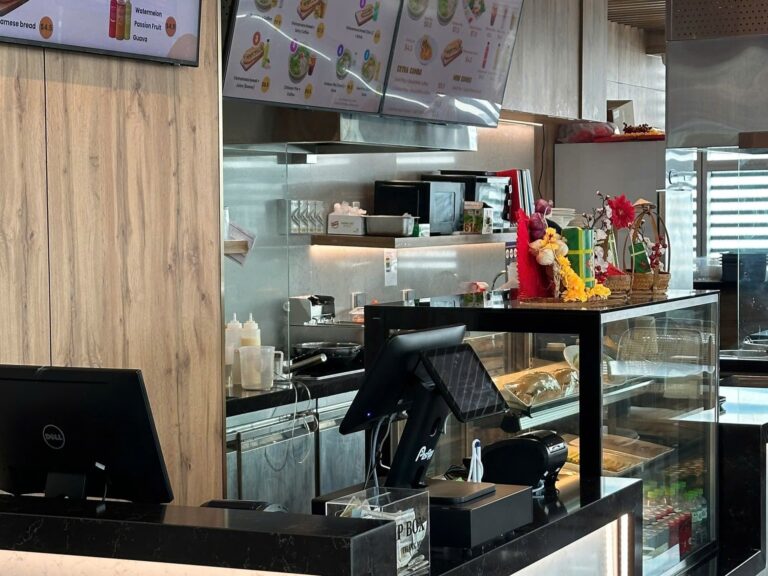
Passengers browse a visual menu on the PosApp Kiosk, enter their pager number and tap a bank card to pay. Paid orders go straight to the PA680 cash register at the cashier and to the preparation area.

Preparation starts only after payment, and every ticket shows the customer's pager number.

  • PosApp Kiosk
  • PA680 at the cashier
  • Card payment
  • Pager numbers

From the kiosk to the preparation counter

  1. Choose on the kioskPassengers pick items from an illustrated menu on the touchscreen.
  2. Enter the pager numberThe number on the coaster pager links the order to the passenger.
  3. Tap a card to payPayment is completed on the kiosk before anything is prepared.
  4. Prepare and callThe order prints at the cashier and preparation area with the pager number.

HardwarePosApp Kiosk for self-ordering, plus a PA680 cash register at the cashier

Ask about a kiosk setup
Aerial view of a Nam Long residential community

Residential community · resident app vouchers · shophouses

Nam Long

Resident-app vouchers confirmed on the cash register at each shophouse

Residents receive vouchers in the Nam Long app and redeem them at participating shophouses. On the PA680 cash register, the cashier checks the voucher conditions, applies it to the bill and takes payment, and each store's sales and redemptions are recorded separately.

Nam Long sees redeemed vouchers and sales for every shophouse, while each store keeps its own shifts and invoices.

  • PA680 cash register
  • Resident app vouchers
  • Checks at checkout
  • Store-level reconciliation

From the resident app to the shophouse cash register

  1. Nam Long resident app

    Issues vouchers and resident benefits

    PA680 at the shophouse

    Residents show the voucher at checkout

  2. At the cash register

    POSAPP POS

    Checks and applies the voucher

    • Checks voucher conditions
    • Applies it to the bill
    • Records the store and shift
  3. After each sale

    NAM LONG

    Central oversight of the community

    • Redeemed vouchers by store
    • Sales at each shophouse
    • Reconciliation per store

HardwarePA680 cash register at each shophouse counter, used to confirm vouchers

Ask about a setup like this
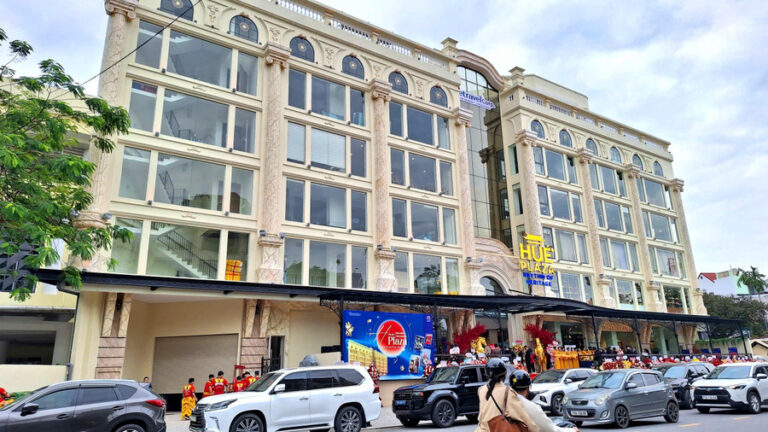
The D’Hue – Huế Plaza building in Huế

Six-floor shopping center · Vietravel · one membership

D’Hue – Huế Plaza

Six floors of different businesses on one system, with a PA680 at every counter

Huế Plaza, a Vietravel shopping center, runs a café, souvenirs, áo dài, a restaurant, conferences and weddings, and a Sky Bar. Each floor's cashier works on a PA680 cash register set up for its business, and all sales and stock reach central management.

Customers use one membership across all six floors, and management reconciles each counter and cashier shift.

  • PA680 at every counter
  • F&B and retail
  • Shared membership
  • Table QR ordering

Six floors, one PosApp system

  1. Café, restaurant and Sky Bar

    Table orders, kitchen printing and recipe stock

    Souvenirs and áo dài

    Barcode scanning and stock by product

  2. PA680 counters

    POSAPP POS

    Set up for each floor

    • Orders, payment and shift close
    • Membership points on every floor
  3. Venue management

    HUẾ PLAZA

    Oversight of the whole building

    • Revenue by counter and floor
    • Cash, card and QR reconciliation
    • One membership for all floors

HardwarePA680 cash registers at the cashier counters on every floor

Ask about a multi-counter setup
Swipe to see more stories →

Plan a cash register setup like these

Tell our English-speaking team your business type, number of counters and the equipment you already have. We will suggest the cash registers, handheld devices and accessories that fit.

Get hardware advice →

Customer media

POS Hardware Accessories

Complete Your Cash Register with the Right POS Accessories

POS accessories add receipt printing, barcode scanning, cash storage and kitchen order handling to your checkout. For a business in Vietnam, choose equipment around your daily workflow, counter space and POS model. Start with the devices you need, then confirm compatibility with your hardware and software.

If your POS already includes a suitable printer or feature, you may not need a separate device for the same job.

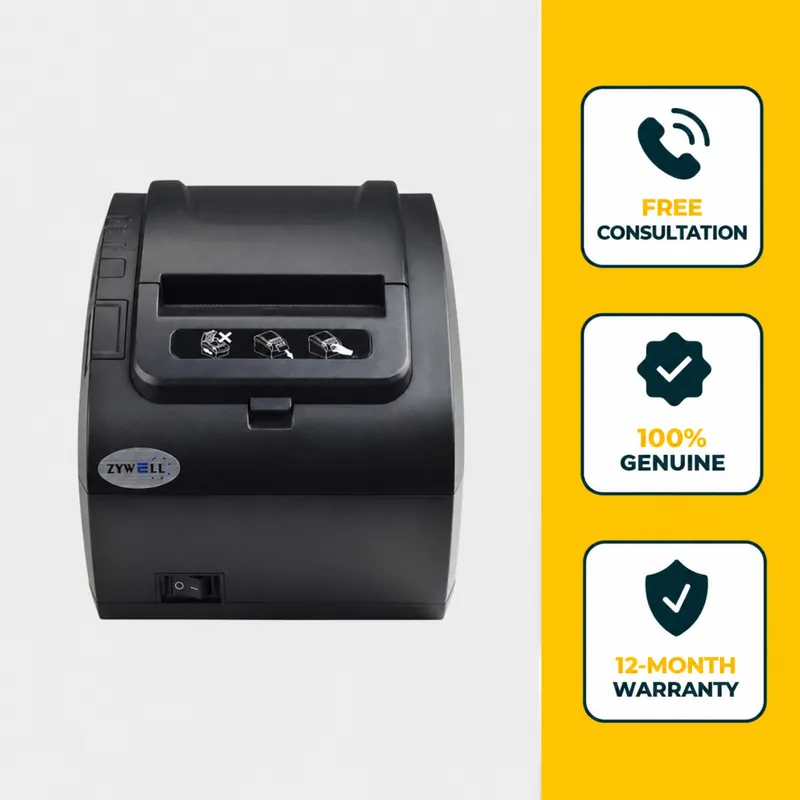
ZY303 external receipt printer with English product information
Print receipts at checkout

ZY303 Receipt Printer

Add a separate receipt printer when your cash register has no built-in printer or you need receipts printed at another counter.

  • Keep receipt printing where your cashier needs it.
  • Skip this extra device if your POS already has a suitable printer.

1,520,000VND

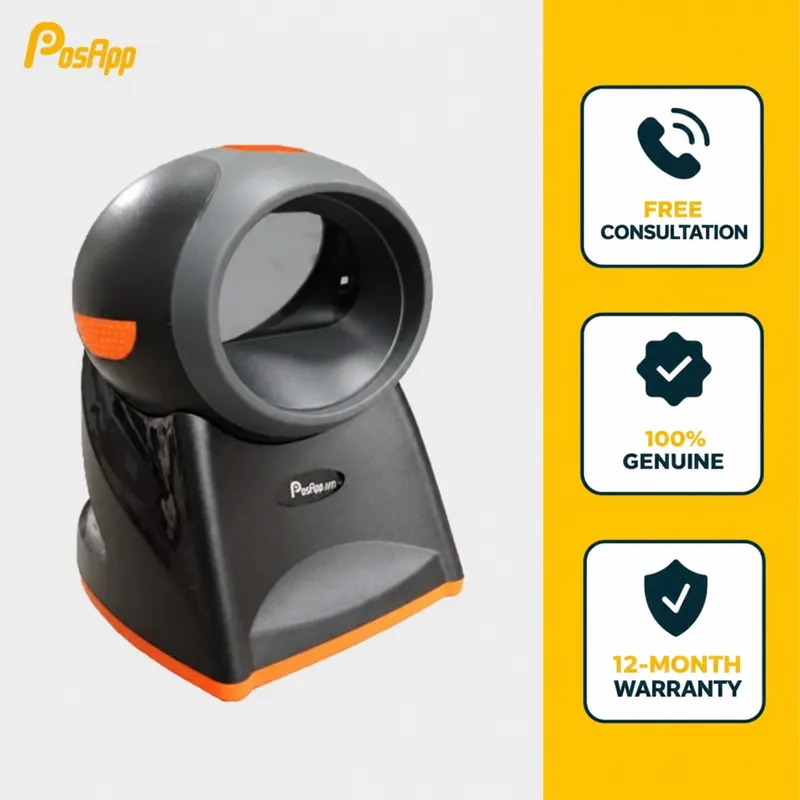
PosApp desktop barcode scanner for retail cash registers
Scan products at retail checkout

Barcode Scanner

Build a cash register with a scanner for shops that sell barcoded products. A compatible scanner helps staff add items without typing each product code.

  • Useful for minimarts, grocery stores and retail counters.
  • Confirm barcode types, the scanner model and connection before ordering.

Request a compatible scanner

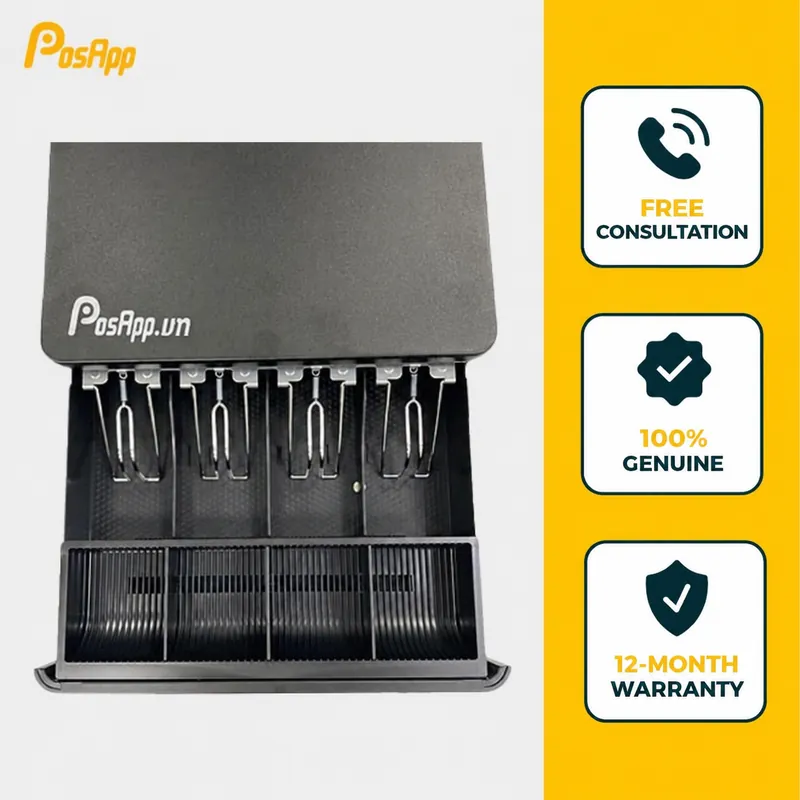
Open PosApp cash drawer with separate banknote and coin compartments
Keep cash organised

PosApp Cash Drawer

Keep banknotes and coins organised at the counter for daily sales, cash counting and shift handovers.

  • Useful for businesses that regularly accept cash.
  • Check the drawer connection against your receipt printer or POS setup.

950,000VND

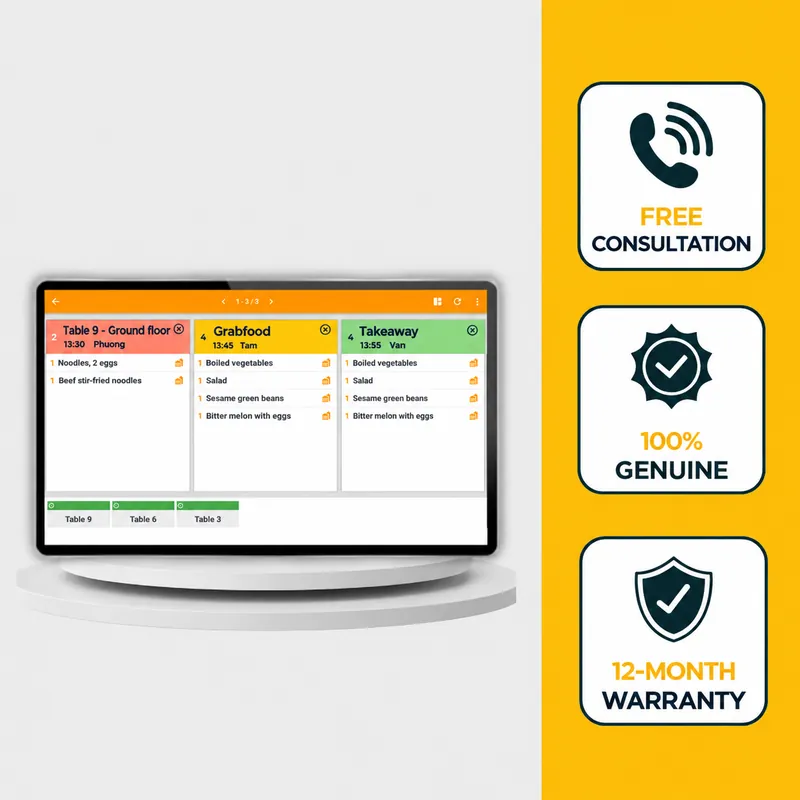
Kitchen display with an illustrative English order interface

KDS shown. Illustrative interface translated into English.

Send orders to the kitchen or bar

Kitchen Display or Printer

Choose a kitchen display system (KDS) or kitchen printer for restaurants and cafés that need orders sent to the right preparation area through PosApp software.

  • A KDS shows orders and their preparation status.
  • A kitchen printer suits teams that work with paper tickets.

Configure for your kitchen workflow

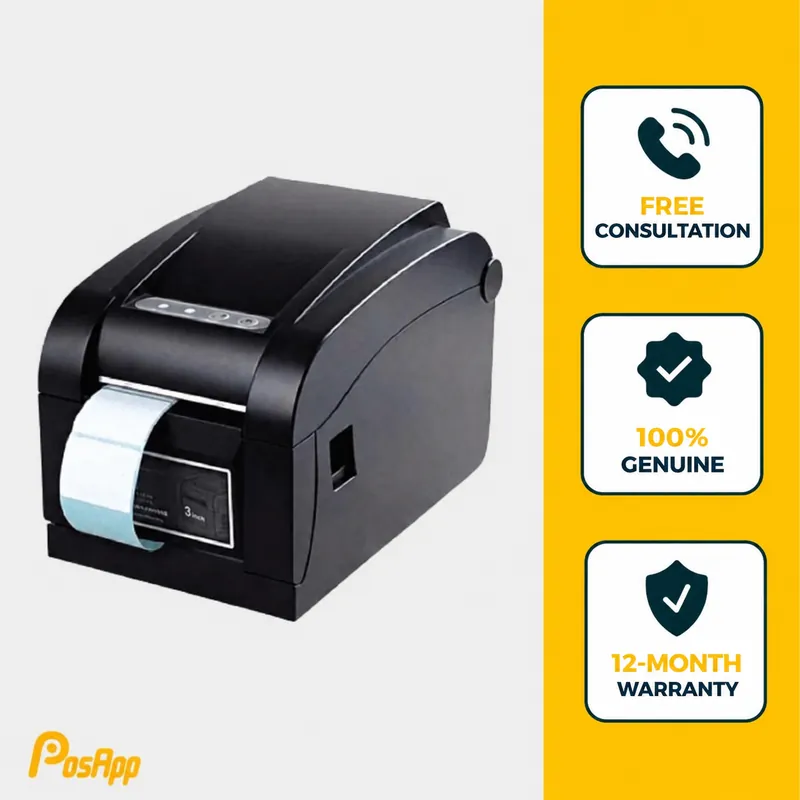
PA USB barcode and product label printer with a label roll
Print product and drink labels

PA USB Label Printer

Print product labels, price labels or drink-preparation labels using the right label stock and supported software configuration.

  • Suitable for retail products and café takeaway orders.
  • Confirm the label format and printing workflow before choosing a model.

1,690,000VND

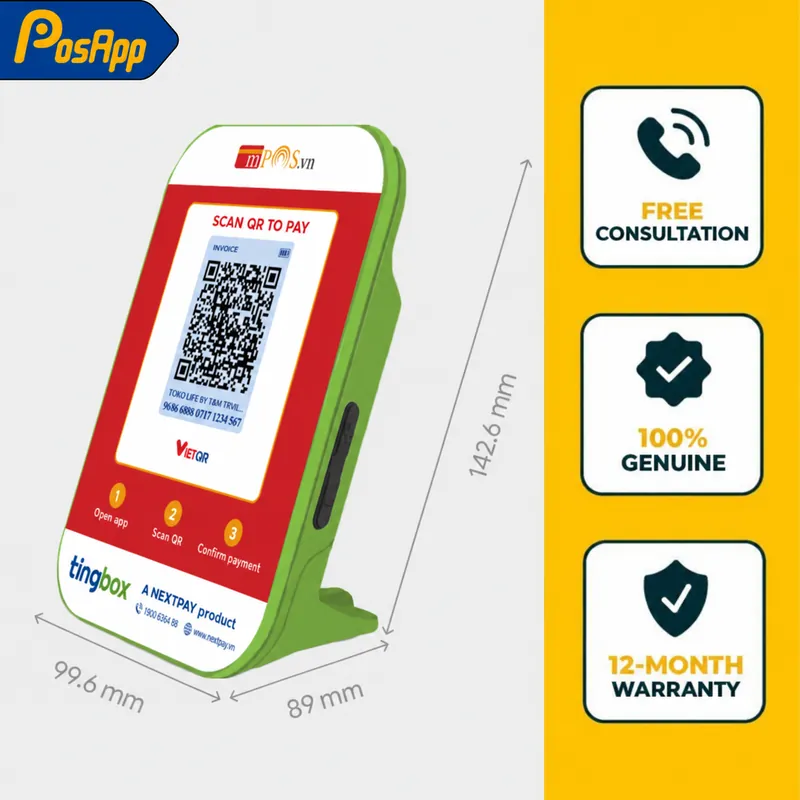
TingBox QR payment notification speaker with English explanatory labels

English labels shown for illustration; device label and service language may differ.

Hear bank-transfer notifications

TingBox Payment Speaker

Hear an alert when a supported bank transfer is recorded, so your cashier can check incoming payments without repeatedly checking a phone.

  • Useful at counters that often accept QR payments or transfers.
  • Confirm supported banks and service activation for your business in Vietnam.

Check your payment configuration

Prices are listed in VND for the named accessories. Ask for a current quotation covering availability, VAT, software or service fees, and delivery. Warranty terms apply.

Already Have POS Equipment?

Send the model numbers and photos of the connectors. PosApp can help you check what can be reused and which accessories your business needs. Matching a USB port alone does not confirm compatibility.

PosApp software

POS Software Modules for Your Cash Register

PosApp cash registers work with PosApp POS software for orders, checkout and receipts. Add modules as your business grows, and confirm which ones your software plan includes when you request a quote.

  • PosApp POS terminal creating an electronic invoice from a checkout sale

    POS E-Invoicing

    Create VAT e-invoices from completed checkout sales and keep digital records. The e-invoice service is quoted separately from your hardware.

  • PosApp dashboard showing revenue and shared loyalty across three store locations

    Multi-Location Management

    Connect stores and franchises, compare revenue by location and run one shared loyalty program.

  • PosApp inventory illustration showing recipe ingredients deducted from stock after a sale

    Advanced Inventory

    Track recipes and ingredients, deduct stock after each sale and check stock movements.

  • PosApp CRM illustration with customer segments, ZNS and SMS campaigns, and voucher reports

    CRM & Customer Campaigns

    Segment customers, send offers by Zalo ZNS or SMS and track which vouchers are used.

  • PosApp QR ordering and digital menu illustration with VietQR payment and loyalty points

    QR Ordering & Digital Menu

    Customers scan a QR code to order from their phone, pay with VietQR and earn loyalty points.

    See restaurant POS
  • PosApp prepaid card and service package illustration showing balances, visits and treatment sessions

    Prepaid Cards & Service Packages

    Manage prepaid balances, visit packages and treatment plans, and see what each customer has left.

  • PosApp POS connecting sales, inventory and customer data to an ERP system through an API

    ERP Integration

    Connect sales, inventory and customer data to your ERP through an API. Integration scope depends on your ERP.

    See how Tefal connects its ERP
  • Not sure which modules you need?

    Tell us how you sell, and our English-speaking team will suggest the hardware and software modules that fit.

    Ask which modules fit

Module images show illustrative interfaces. Available modules depend on your software plan.

Before you choose

How to Choose a Cash Register for Your Business

Buying a cash register for a small business in Vietnam? Start with your daily workflow, then check these six details before comparing models, or use the finder below.

Already have POS equipment?
Bring the model numbers and connector photos to your consultation.

Discuss my hardware setup
  1. 01

    Countertop or handheld?

    Choose a countertop POS terminal for a fixed checkout station, a handheld POS device for tableside orders, or both when staff work across different areas.

  2. 02

    One screen or two?

    A single screen keeps the setup compact. A customer-facing display lets guests review their order, total or payment QR code when supported by your software.

  3. 03

    Built-in or separate printer?

    A built-in thermal receipt printer keeps your cash register setup compact. Choose a separate printer when you need a different paper size or printing location.

  4. 04

    Which accessories will you connect?

    List your barcode scanner, cash drawer, receipt printer and kitchen printer. Check available ports and share existing model numbers and connector photos for a compatibility check before ordering.

  5. 05

    What happens at peak times?

    Consider simultaneous orders, barcode scanning, delivery orders and printing. Ask for a demo using a workflow similar to your shop, café or restaurant.

  6. 06

    How will customers pay?

    List the cash, local QR and bank-card payment methods you want to offer. Confirm compatible equipment, provider activation and transaction fees for your chosen setup.

Quick picks: which PosApp cash register fits?

If you need…Choose
A compact counter for a small shop or caféPAM3
A larger screen at a busy counterPA680 Single Screen
A screen for customers to check orders and QR codesPA680 Dual Screen
A built-in 80 mm receipt printer in one unitPAD2A
NFC membership or prepaid cardsSW2NFC-PRO
Table-side orders at a lower costPAC2s
Handheld orders all shift, or a handheld as your main devicePAC3
Card and QR payments on a handheld deviceSmartPOS Pro
Customers ordering and paying by themselvesPosApp Kiosk
A counter plus staff taking orders outsidePA680 Dual Screen + PAC3, as at Hồng Trà Ngô Gia

Hardware prices for every model are in the comparison table.

See the full scope

What Does Your Cash Register Quote Include?

Your POS hardware, software and connected devices work together. Ask for an itemised quotation in VND so you can compare the total cost of the setup your business needs.

YOUR POS SETUPScope to confirm
Hardware & accessoriesOne-time equipment cost
Confirm the POS terminal model, screen configuration, receipt printer and accessories. List quantities and any equipment you plan to reuse.
POS softwareSubscription & selected modules
Confirm the plan, billing period and modules for orders, stock, staff permissions and reporting. PosApp software requires a separate subscription.
Connected servicesOnly the connections you need
List any payment services, online ordering or e-invoice connections you need. Check compatibility, activation requirements and separate provider fees.
Delivery, setup & trainingScope agreed for your location
Confirm delivery, installation, menu or product setup, owner onboarding and staff training. Ask which tasks are included and which cost extra.

Confirm the total in VND
Ask for quantities, VAT, renewal terms and any delivery or setup charges before ordering.

Help us prepare your quote

Share your business type, city, number of checkout stations, existing devices and planned opening date.

Request an itemised quote

Set up with local support

English Advice. Local POS Support in Vietnam.

Plan your cash register setup with an English-speaking adviser, then prepare your local team for everyday checkout.

  1. 01

    Tell us about your business

    Share your city, business type, planned opening date and number of checkout points. Send a counter photo or the model numbers of POS equipment you already own.

  2. 02

    See your workflow in English

    Book an English-guided demonstration. If you also choose PosApp software, owners can receive English walkthroughs while local cashiers and staff receive guidance in Vietnamese.

  3. 03

    Agree on setup at your location

    Confirm device availability, delivery and installation for your address. Specify which receipt printers, cash drawers and compatible accessories need connecting, and which setup tasks are included.

  4. 04

    Know who to contact afterwards

    Get help diagnosing equipment issues remotely. Confirm the warranty terms, repair arrangements and any transport costs that apply to your selected hardware.

12-month hardware warranty

Subject to the applicable product and warranty terms. Confirm coverage and repair arrangements for the devices in your quote.

Buying POS hardware in Vietnam

Cash register questions.
Clear answers for your business.

Opening or running a business in Vietnam? Get practical answers about POS hardware, local payments, English support and what happens after you buy.

Start with the right hardware

Understand the devices, the names used in Vietnam and what belongs at your counter.

Is a POS cash register the same as a bank card terminal in Vietnam?

No. A POS cash register manages sales; a bank card terminal processes card payments. In Vietnam, people use the phrase ‘máy POS’ for both, so specify which function you need when buying.

  • POS cash register: staff enter orders or scan products, calculate the total, print receipts and record sales in PosApp software.
  • Card terminal: a bank or payment provider authorises the customer's card and settles the payment to your merchant account.
  • SmartPOS Pro: combines PosApp sales software with payment-terminal functions. Card acceptance requires a separate merchant agreement and activation.

A touchscreen, receipt printer or NFC logo alone does not mean a device can accept bank cards.

Which cash register should I choose for a café, restaurant or retail shop?

Choose by where orders are taken and where customers pay. Build the equipment list around those workstations.

  • Small café or compact counter: consider the PAM3 countertop terminal with a separate receipt printer, or PAD2A with its built-in printer.
  • Restaurant with table service: use a countertop terminal for the cashier and PAC2s or PAC3 handheld devices for staff taking orders. Add a kitchen or bar printer where preparation tickets are needed.
  • Retail shop: use a countertop terminal, barcode scanner, receipt printer and cash drawer.
  • Customer-facing checkout: choose a dual-screen terminal such as PA680 Dual or PAD2A so customers can review their order.
  • Self-service ordering: add a kiosk when customers will enter their own orders.
Do I need a receipt printer, barcode scanner and cash drawer?

A printer produces paper receipts, a scanner speeds up barcoded sales and a cash drawer keeps notes and coins organised at checkout. Check the terminal's included equipment before buying these separately.

  • Built-in printers: PAC2s and PAC3 use 58 mm receipt paper. PAD2A has an 80 mm printer with an automatic cutter.
  • Separate printers: PAM3, PA680 and SW2NFC-PRO need an external printer for paper receipts. An 80 mm roll gives more room for item names and totals.
  • Restaurant printing: a customer receipt and a kitchen preparation ticket serve different purposes. Add a printer at each kitchen or bar station that needs its own tickets.
  • Retail accessories: select a scanner for the barcodes you use. A cash drawer commonly connects to the receipt printer; match its connector and opening signal.
Can I use equipment I already own or bring a cash register from overseas?

Existing equipment can be reused after a model and connection check. Send PosApp the device model, operating system, printer model and clear photos of the ports. The check should cover software support, printing, scanning and cash-drawer opening.

For an imported terminal, also check the power-adapter input label, local warranty arrangements and whether its payment service operates in Vietnam. A plug adapter does not change the voltage rating of a power supply.

A US Square account and reader cannot simply be moved to Vietnam for card processing. Square requires processing in the country where the account was activated and does not list Vietnam as a supported card-processing market. See Square's country restrictions. For any other imported system, check its provider's Vietnam support before buying.

Know the cost. Prepare for opening day.

Separate the hardware purchase, software subscription and installation work before you order.

How much does a PosApp cash register cost in Vietnam?

PosApp models with published prices range from VND 4,890,000 to VND 13,860,000, including VAT. For example, PAC2s is VND 4,890,000, PAM3 is VND 5,590,000 and PAD2A is VND 11,590,000. SmartPOS Pro and self-order kiosks are quoted separately.

These are hardware prices. Add the PosApp software subscription, any separate printer or accessories, and the delivery or installation charges shown in your quotation. An integrated printer is part of the named device; an external printer needs its own line item.

All amounts here are in Vietnamese đồng (VND). Compare the total equipment list and service term, rather than comparing only the screen price.

Is PosApp software included, and what should my quotation show?

The hardware price and software subscription are separate. Buying a terminal does not activate a software subscription or a payment-processing account.

Ask for an itemised quotation showing:

  1. Hardware: exact model, quantity, built-in printer and each separate accessory.
  2. Software: plan name, number of locations, subscription term, total payable and renewal price. The published PosApp software plans use a minimum 12-month term.
  3. Optional services: e-invoices, delivery-platform connections or other modules you want to use.
  4. Setup: delivery address, installation, menu or product import, and owner/staff training.
  5. Tax and payment services: VAT treatment for each item and the separate merchant-provider fees for card or QR acceptance.

This makes the first-year total and the recurring costs clear before you pay.

How do delivery and installation work, including outside Hanoi and Ho Chi Minh City?

PosApp's hardware offer includes initial delivery and installation in central Ho Chi Minh City and Hanoi. Give the team your complete installation address so the quotation records coverage. For outer districts and other provinces, delivery and on-site work are quoted before the order is finalised.

The initial setup covers software installation, device connections, menu or product entry and staff guidance. PosApp assesses large catalogues and data-cleanup work and states any import fee in the quotation.

Prepare these before installation: your opening date; counter dimensions and power sockets; internet access; a spreadsheet of item names, categories, prices and barcodes; and the names of staff attending training. Agree the delivery date and training session in the order, then run a sample sale and receipt print before handover.

Can I use PosApp in English while my staff work in Vietnamese?

Yes. PosApp offers English interfaces and English onboarding for owners, with Vietnamese training for local staff. Request an English demo and practise the same sale using both the owner and cashier accounts.

The interface language, your product names and the printed receipt are three separate things. Prepare the English and Vietnamese names you want customers and staff to see; switching a menu language should not be treated as a translation of your entire product catalogue.

During the demo, review the cashier screen, management reports and a sample receipt with your actual item names and Vietnamese accents. Also check the kitchen ticket if your team needs different wording at the preparation station. This establishes the wording and print layout before opening day.

Cash, VietQR and international cards

A sale record and a successful payment are different events. Set up both correctly.

How should I handle Vietnamese đồng and cash at checkout?

Set up your Vietnam store's prices and cash transactions in VND. Enter full amounts: a coffee priced at 45,000 đồng should be stored as 45,000, not 45. Show the currency clearly on customer-facing totals and receipts.

For a VND 85,000 sale paid with VND 100,000, the change is VND 15,000. Staff should select the cash payment method, enter the amount received, give the change and issue the receipt.

At the start of a shift, record the opening cash float. At closing, compare the counted cash with the opening float, cash sales and any recorded cash movements. Keep bank transfers and card payments under their own payment methods so they are not counted as cash in the drawer.

What is VietQR, and can customers pay with a foreign banking app?

VietQR is a Vietnamese QR standard used for bank transfers and merchant payments through participating services. A bank-transfer QR can carry the recipient's bank details, amount and payment reference so the customer does not need to type them.

A foreign banking app is not automatically compatible. Cross-border QR payments work through specific participating banks, apps and merchant networks. Do not assume a US or European banking app can pay any QR displayed in Vietnam. Offer international card payments or cash for customers whose app is unsupported.

Before marking an order paid, check the incoming payment in your receiving bank account or connected merchant system, including the amount and order reference. A customer's screenshot alone is not confirmation. See the NAPAS payment network for participating services.

Can PosApp accept Visa, Mastercard and contactless payments?

SmartPOS Pro supports bank-card and contactless payments after its merchant payment service is activated. PosApp lists domestic ATM cards, Visa, Mastercard, JCB, contactless cards and QR among its payment functions.

Other countertop and handheld cash registers can record a card sale while a separate bank terminal processes the payment. Establish whether staff enter the amount on that terminal manually or whether the provider supplies a working connection to the till.

SW2NFC-PRO's membership-card reader is for loyalty or internal prepaid-card workflows; it is not a substitute for an activated bank-card terminal. For mobile-wallet payments, ask the payment provider to demonstrate the exact wallet and card network you intend to accept.

Do I need a Vietnamese bank account or a separate payment contract?

For a domestic bank-transfer QR, you need a receiving account at a participating bank in Vietnam. For card acceptance, you need a merchant agreement with a payment provider. Purchasing POS hardware does not complete either registration.

For a foreign-owned business, give the bank or payment provider your Vietnam business registration details, tax information, authorised representative's documents and proposed settlement-account details. Have the provider identify the documents required for your legal entity before submitting the application.

The payment agreement should state the accepted cards and QR services, transaction fees, international-card charges, settlement timing, refund process and any terminal charges. Keep these charges separate from PosApp's hardware and software prices. Use the receiving account named in your approved payment arrangement and test a payment and its settlement before launch.

Keep service running day to day

Know what happens when the internet drops, orders arrive online or you manage the shop remotely.

Will my cash register still work if the internet goes down?

Yes. PosApp supports local order entry, receipt printing and cash-sale recording during an internet outage. The device stores those transactions locally and synchronises them when the connection returns. The printer must still have power and a working local connection.

Online orders, remote reports, e-invoice issuance and payment services need their own internet connection. An offline sale on the till does not confirm a card payment or bank transfer.

Train staff to use the cash workflow, keep the terminal running and check synchronisation after reconnecting. Do not reset or replace a device before its unsynchronised orders have been checked. Use a 4G hotspot as a backup connection when you need to restore online functions.

What happens during a power cut, and should I buy a handheld POS?

A charged handheld POS can keep operating on its battery; a countertop terminal needs electrical power. PAC2s and PAC3 combine a battery, built-in receipt printer and 4G connectivity, making them useful for table service, mobile selling and backup checkout.

For online features, the handheld also needs an active mobile-data connection or a Wi-Fi network that is still running. A battery-powered till does not keep an external kitchen printer or the shop's router powered.

Before opening, charge the handheld, load the required products and staff access, check the paper roll and test a sale on mobile data. If your main counter must stay powered, size a UPS for the terminal, router and any essential printer, using their actual power requirements.

Can the same POS handle GrabFood and ShopeeFood orders?

Yes, with different workflows for handheld and countertop devices. Decide whether you want the merchant apps on the device or their orders connected to PosApp.

  • PAC2s and PAC3: support installing Grab Merchant and Shopee Merchant for the apps' order-handling and printing workflows.
  • Countertop terminals: connect the shop's merchant accounts to PosApp so incoming orders can be handled in the sales system and printed on the configured printer.
  • SmartPOS Pro: does not support installing these merchant apps or receiving delivery-platform orders.

You need active merchant accounts, internet access and the relevant integration in your service quotation. Test one order from each platform, checking item names, modifiers and the kitchen ticket before accepting live orders through the new workflow.

Can I see sales from overseas, and what happens if I replace the machine?

Yes. Authorised users can view synchronised PosApp sales data remotely through the cloud service. This allows an owner to review the shop's activity without being physically at the counter.

When you replace a machine, sign in to the new compatible device with the authorised account to access data already synchronised to the cloud. Orders stored only on an offline device need to synchronise before that device is reset or retired.

For daily checks, review sales by payment method and staff shift, then compare them with the cash count and bank or card settlements. If the shop is offline, remote reports cannot yet show its unsynchronised transactions. Give each staff member their own access and keep owner-level permissions with the people responsible for managing the business.

From your first invoice to after-sales support

Understand tax-invoice setup, warranty coverage and how to get help in Vietnam.

Can I issue VAT e-invoices, and is a printed receipt the same thing?

Yes. PosApp supports VAT e-invoices and sales e-invoices using the invoice type registered for your business. An ordinary thermal receipt is a sale record; printing it does not create a tax invoice. A cash-register e-invoice is not automatically a VAT invoice.

Provide your registered business name, tax code and address; complete the required e-invoice registration or change with the tax authority; then activate the service and confirm the invoice type and tax settings with your accountant. The e-invoice service is separate from the hardware price. Connecting an existing invoice provider requires an integration assessment and quote.

For an invoice in a customer's company name, collect its registered name, tax code and address, plus an email address if the customer wants email delivery. E-invoice issuance needs internet access. After an outage, check the order's invoice status before issuing it to avoid duplicates. Include tax-authority transmission checks in your end-of-day routine. See PosApp's e-invoice service.

What does the 12-month hardware warranty cover?

The listed PosApp terminals have a 12-month hardware warranty for covered manufacturing or technical faults. Keep the purchase and warranty documents, serial number and warranty seals intact.

The published policy excludes accidental damage, drops, liquid or moisture damage, incorrect voltage and unauthorised dismantling or repair. It also excludes specified accessories and parts, including batteries, cables and power adapters. Warranty transport is excluded from the standard coverage.

To request service, send the model and serial number, proof of purchase, a description of the fault and a photo or video showing the problem. PosApp first checks the issue and directs the repair process. Standard warranty follows the assessment and repair process. On-site warranty attendance applies to customers registered for that service. Other site visits are quoted separately. Read the full hardware warranty policy.

How do I get technical help after installation?

PosApp provides remote technical support daily from 08:30 to 22:00, Vietnam time (UTC+7). For English assistance, contact the team on WhatsApp at +84 786 212 926. The general technical hotline is 1900 3016. Arrange your English-speaking support contact during handover.

For a fault, send your store name, device model, error message, what stopped working and a short photo or video. Say whether staff can still create orders, print and access the internet. These details help separate a terminal fault from a printer, network or payment-provider issue.

Remote technical assistance and updates within the subscribed plan are included during the software service period. PosApp handles issues remotely first. Later on-site visits are quoted for the location and work required before the visit is arranged.

Can I see an English demo before buying, and what should I test?

Yes. PosApp offers English demos, including online sessions via Google Meet or WhatsApp. Send your business type, store location, counter count, opening date and existing equipment list before the session.

Use your own products to test the complete workflow:

  1. Enter an order or scan a product, change the quantity and apply an authorised discount.
  2. Take a cash payment, calculate change and print a receipt with your item names.
  3. Check the customer display, kitchen ticket or barcode scanner you intend to use.
  4. Review a card or QR transaction separately from the till's payment record.
  5. Practise an offline sale, reconnect and check the transaction in the owner's report.

Finish with an itemised equipment and service quotation, installation steps and a staff-training session. This gives you a clear checklist for accepting the system at handover.

English hardware consultation

Find the right cash register for your business in Vietnam.

Talk to our English-speaking team about how your business takes orders and payments. Get an itemised quote covering POS hardware, software, accessories and installation.

Get a POS Hardware Quote

English demos available online

Contact PosApp in English

PosApp offices

Ho Chi Minh City7th Floor, An Toan Hang Hai Building, 42 Tu Cuong, Tan Son Nhat Ward, Ho Chi Minh City
Hanoi2nd Floor, Tower A, Helios Tower, 75 Tam Trinh, Vinh Tuy Ward, Hanoi